
Purpose:
How to set up:
1. Setup > Omadi Agent Pages > Instance Configuration > Check "Enable auto recalculation feature. This is a paid feature. You must coordinate the additional charges before enabling." > Submit
2. For the forms you want to auto recalculate, go to the form Properties.

3. There is a new item (to the left) called "Recalculate".
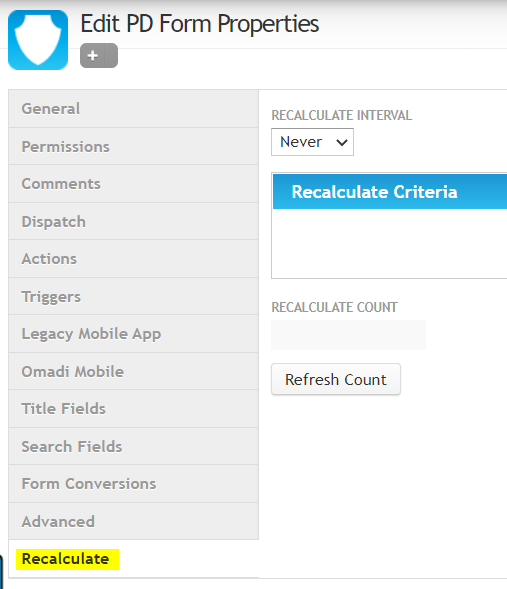
4. The first field that must be filled is "Recalculate Interval".

The options are Never, Hourly, and Daily.
- Never = will never recalculate
- Hourly = will recalculate hourly (based on the Base Recalculate Field)
- Daily = will recalculate daily, 24 hours after the Base Recalculate Field (For example, if it's based on Completion Time, it will recalculate daily, at 24-hour intervals, based on the Completion Time.)
5. If "Hourly" or "Daily" have been selected for the Recalculate Interval, the Base Recalculate Field needs to be filled next. For the Base Recalculate Field, select the field that the recalculation time should be based on. For example, if you want to auto calculate storage hourly, select Completion Time, since that's what storage calculations are generally based on.
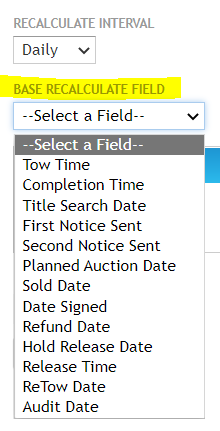
6. Next, set Recalculate Criteria. This is important because without it, resources will be wasted on recalculating fields that do not need it. For example, if you want to recalculate storage, then be sure to Add Criteria Row of "Release Time is Empty". Otherwise, it will recalculate everything, which is unnecessary and wasteful (of dev resources).

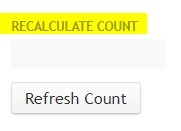
7. To make sure your Recalculate Criteria is/are sufficient, click the "Refresh Count" button. This should give you the number of nodes that would be affected by the criteria you've set. If the number seems too high, please review the criteria and test it again.
8. Be sure to Save your changes.
9. For more info, ask Dan!